
Frequently asked Questions
Welcome to our FAQ
We’ve compiled answers to some of the questions we get asked most often to help you find what you need quickly. Below, you’ll find information on topics ranging from how to create an account to where to find webinar recordings.
If you don’t find the answer you’re looking for, don’t worry. Feel free to contact us via E-mail, and we will try to help you to the best of our abilities.
How do I create an account?
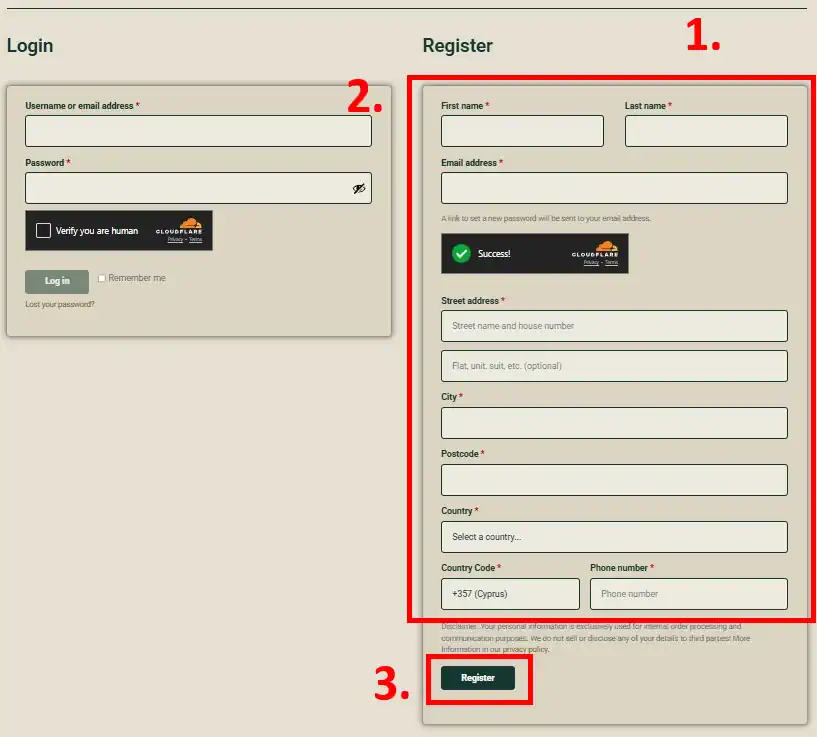
The first step of creating your daskalos-cyprus account is to register yourself on the MyAccount page.
- Go to daskalos-cyprus.com/my-account/
- Fill out the Register form on the right side of your screen. On a mobile device, the form appears below the login form.
- Make sure all the information is complete and correct to ensure a smooth registration process.
- Click on the “Register” Button.
After registering, you will receive two emails to confirm, set your password and verify your account.
Continue with step 2.

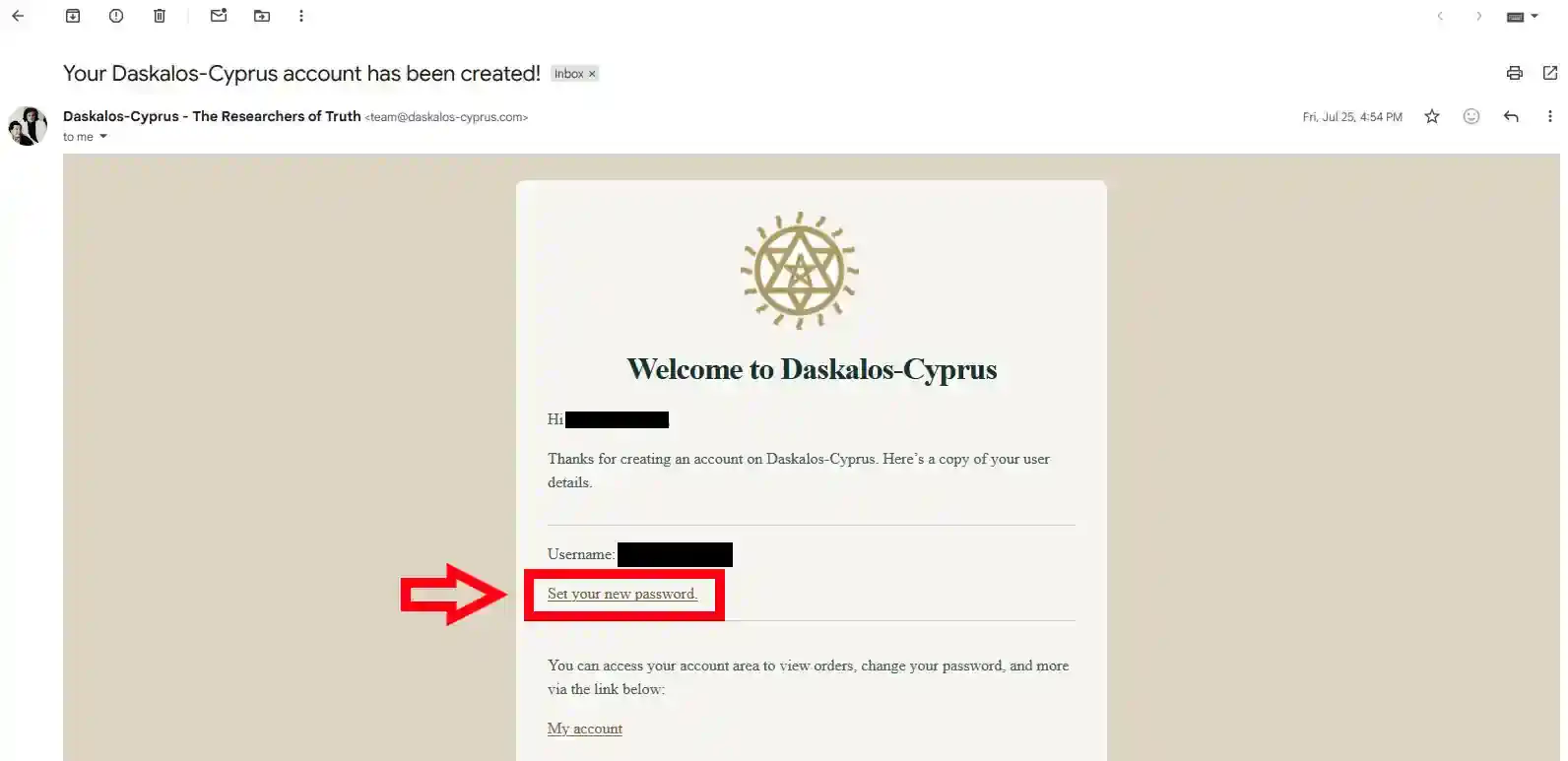
After registering, you will receive an email confirming your account creation. During registration, a temporary password is generated.
To access your account, you need to set a new password:
- Open the confirmation email.
- Click on “Set your new password”. This will open a new window in your browser.
- Follow the instructions on the page to create your new password for your daskalos-cyprus.com account.
Once your new password is set, continue with step 3.
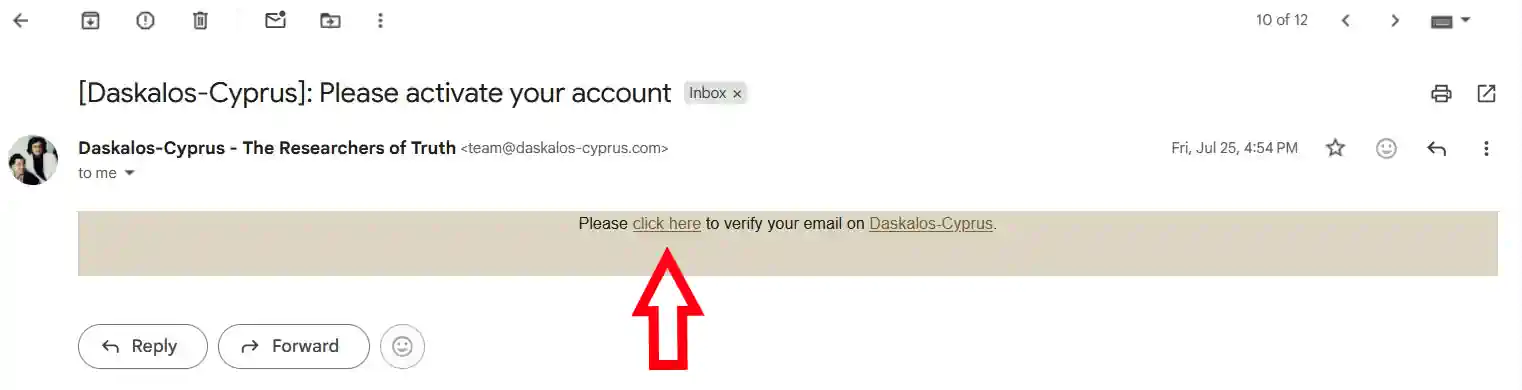
The final step is to verify your account. This ensures that the email address you provided during registration is correct and that you have full access to your account.
- Open the second email you received, titled “Please activate Your Account.”
- Click on “click here” in the email.
Once you do this, your account will be verified and ready to use.
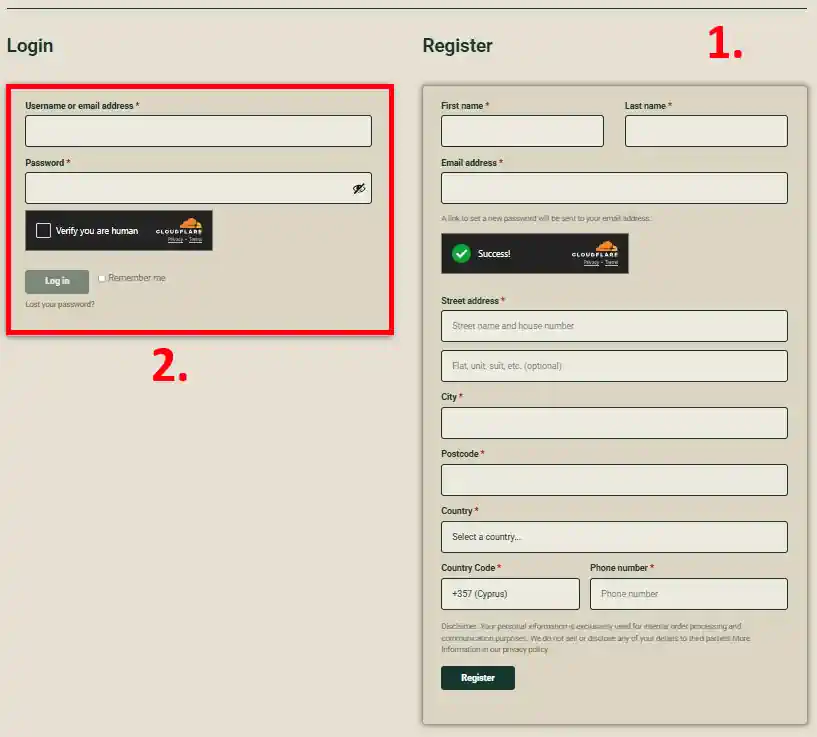
Your Account Is Ready!
Once you’ve completed Steps 1–3, your Daskalos-Cyprus account is ready to use.
Go to daskalos-cyprus.com/my-account
After logging in, you can manage your profile, place orders, and track your order history.
How do I register for an online Webinar?
The first step of making any order, is to log into your account.
- Go to daskalos-cyprus.com/my-account/
- Fill out login form, if you do not have a daskalos-cyprus account yet, please see “How do I create an account?“
- Click on the “Login” Button.
Continue with step 2.
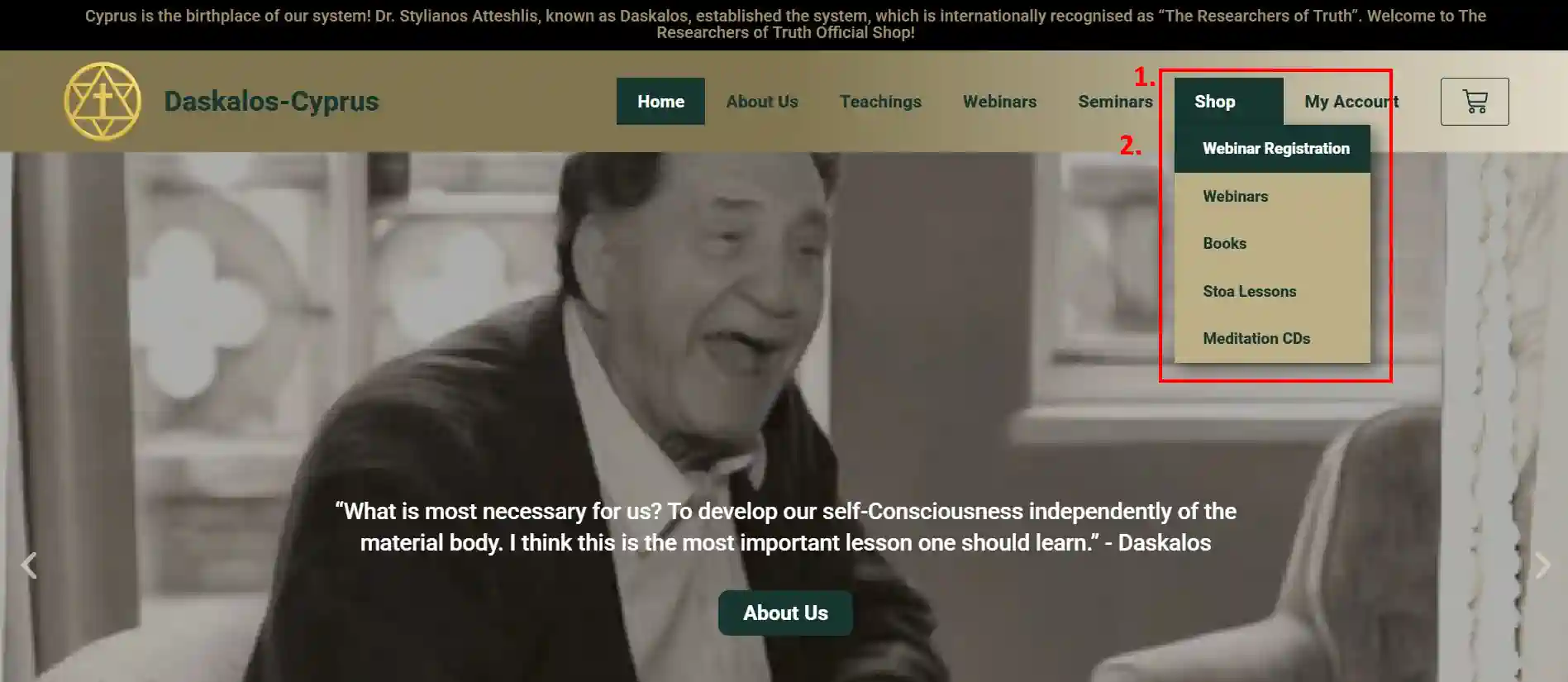
After you are logged into your account, you can find the registration for any upcoming webinar in our shop.
- Hover over “Shop” in the menu
- Click on “Webinar Registration”
Continue with step 3.
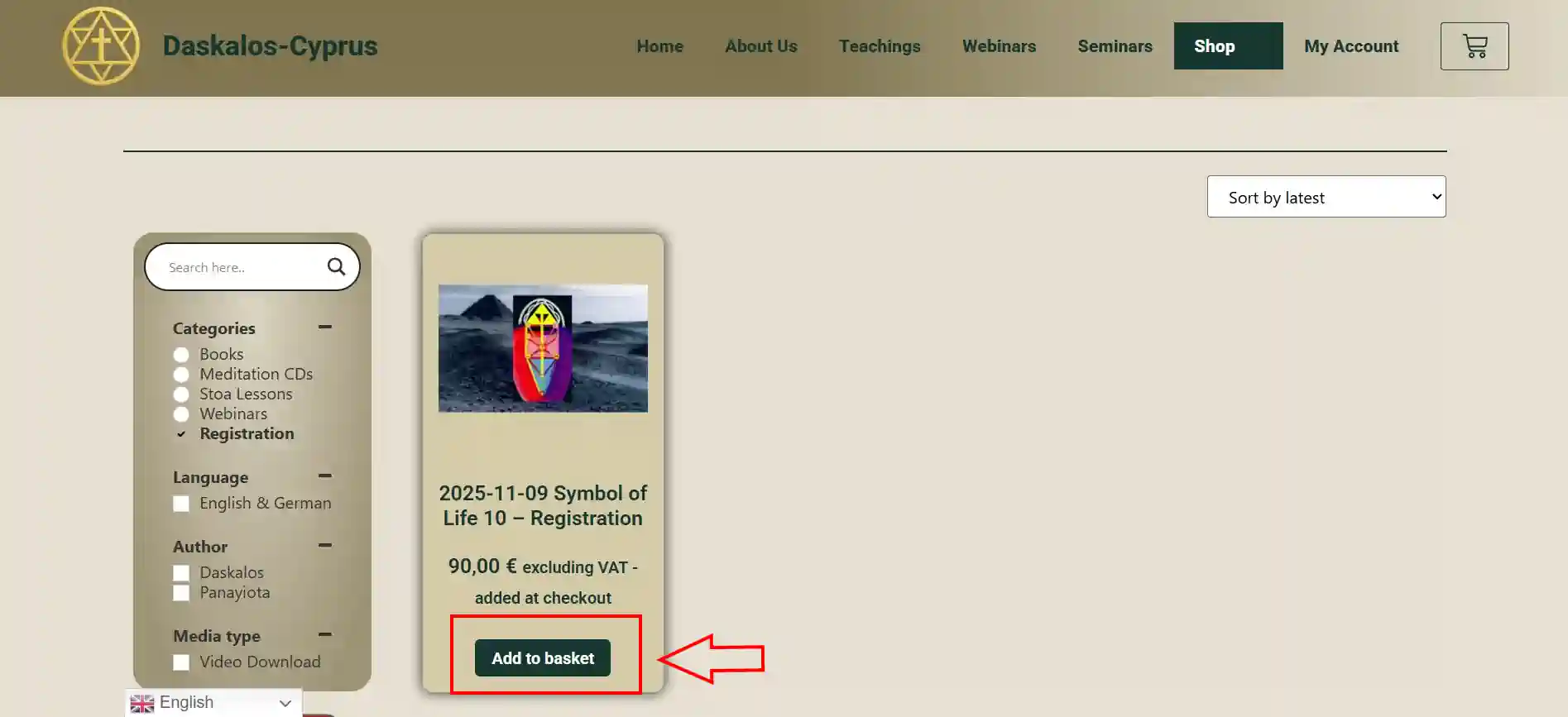
Once you are in our shop, filtered by webinar registrations, you will see the registration for any upcoming webinar as a product
- You can either click on the product to recieve additional information, or
- Click on “Add to Basket” directly.
After you added the registration to your basket, continue with step 4.
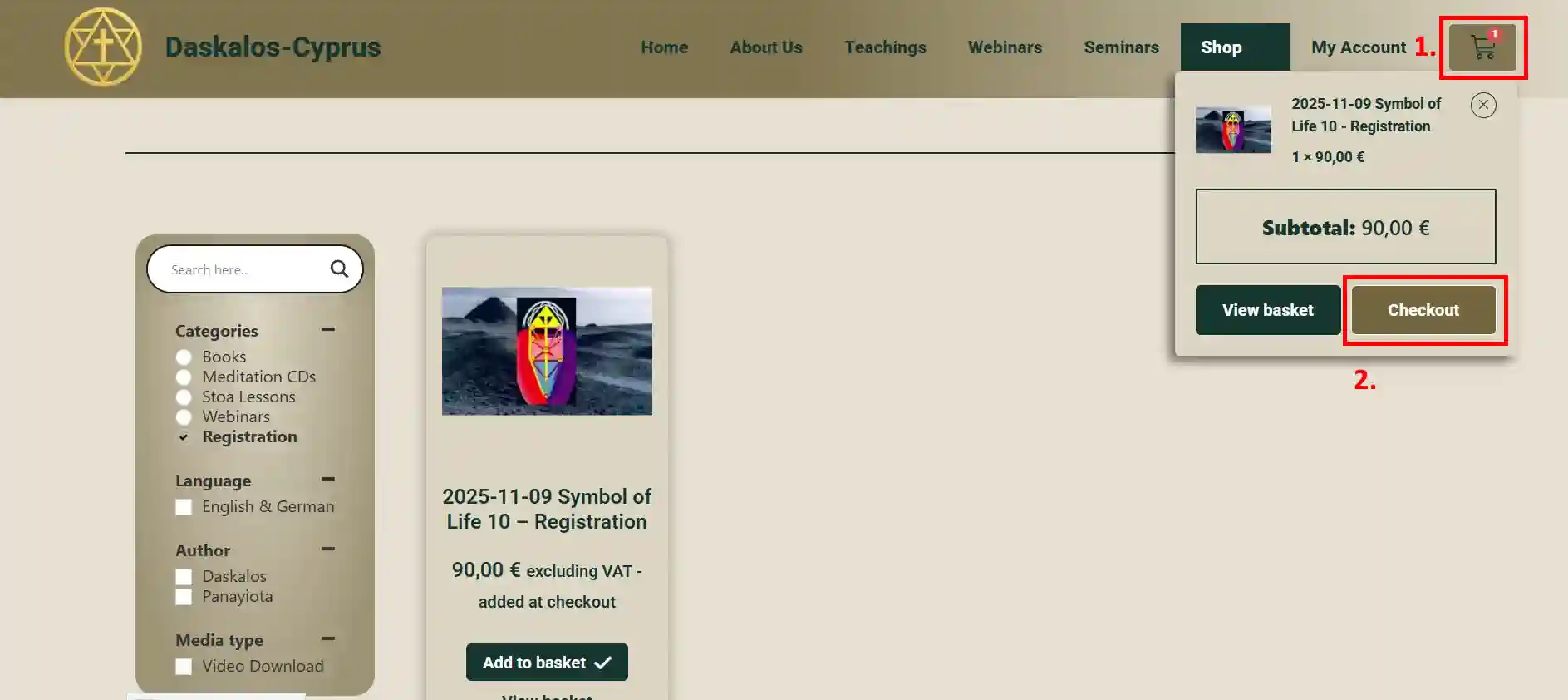
After adding the registration to your basket, you will need to go to the checkout.
- Click on the Basket Icon on the Menu
- Here you can see every Item in your Basket
- Click on “Checkout“
Continue with step 5.
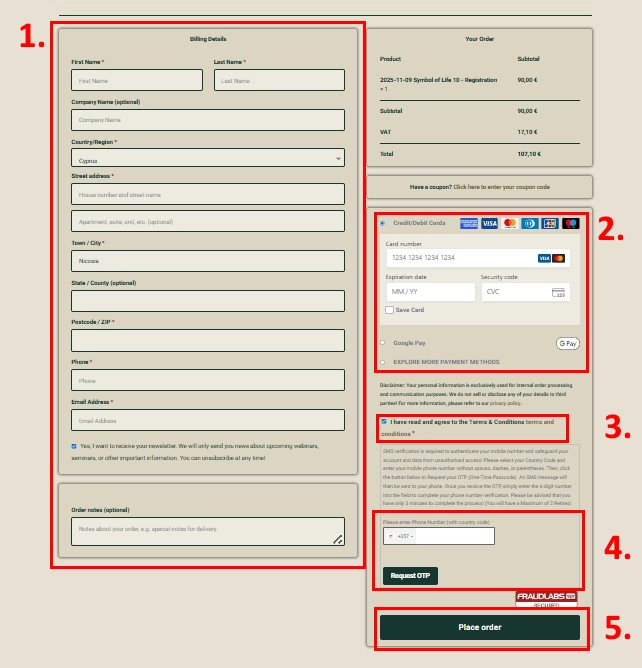
To complete your registration, please follow these steps:
- Fill Out Your Billing Details
- Your billing information will be automatically filled in using the details saved in your account profile.
- Review this information and update it if necessary.
- Choose a Payment Method
- Select your preferred payment method.
- To view more options, click “Explore More Payment Methods.”
- Fill in any required fields for your chosen method.
- Agree to our Terms and Conditions
- Verify Your Phone Number
- Enter your phone number, chose the correct country code.
- Click “Request OTP.”
- You’ll receive an SMS with a 6-digit verification code.
- Enter the code in the new field that appears above the “Request OTP” button.
- Click “Submit OTP.”
- Place Your Order
- Review all your information carefully.
- Once everything is correct, click “Place Order.”
- Complete Bank Verification (3D Secure)
- Your bank may prompt you to complete a 3D Secure verification process.
- This step is managed entirely by your bank to confirm your identity.
- If you encounter any issues, please contact your bank directly for assistance. We can not help you with this step.
Once your webinar registration is complete, you will receive a confirmation email from Zoom.
- Please check your email inbox for this message.
- If you don’t see it, be sure to check your spam or junk folder as well.
This email will contain a Zoom Link, which you will need in order to participate in the webinar.
Please make sure to update your Zoom-client from time to time.
Where can I find the Webinar recordings?
If you attended a Webinar live on Zoom, you will receive access to the webinar recordings, after they are edited.
Keep in mind, that the download links will expire after a few days, so make sure to download the recordings to your local device for your private use as soon as possible.
Below is a description of how to find and download the recordings from your daskalos-cyprus.com account.
The first step is to log into your account.
- Go to daskalos-cyprus.com/my-account/
- Click on the “Login” Button.
Continue with step 2.
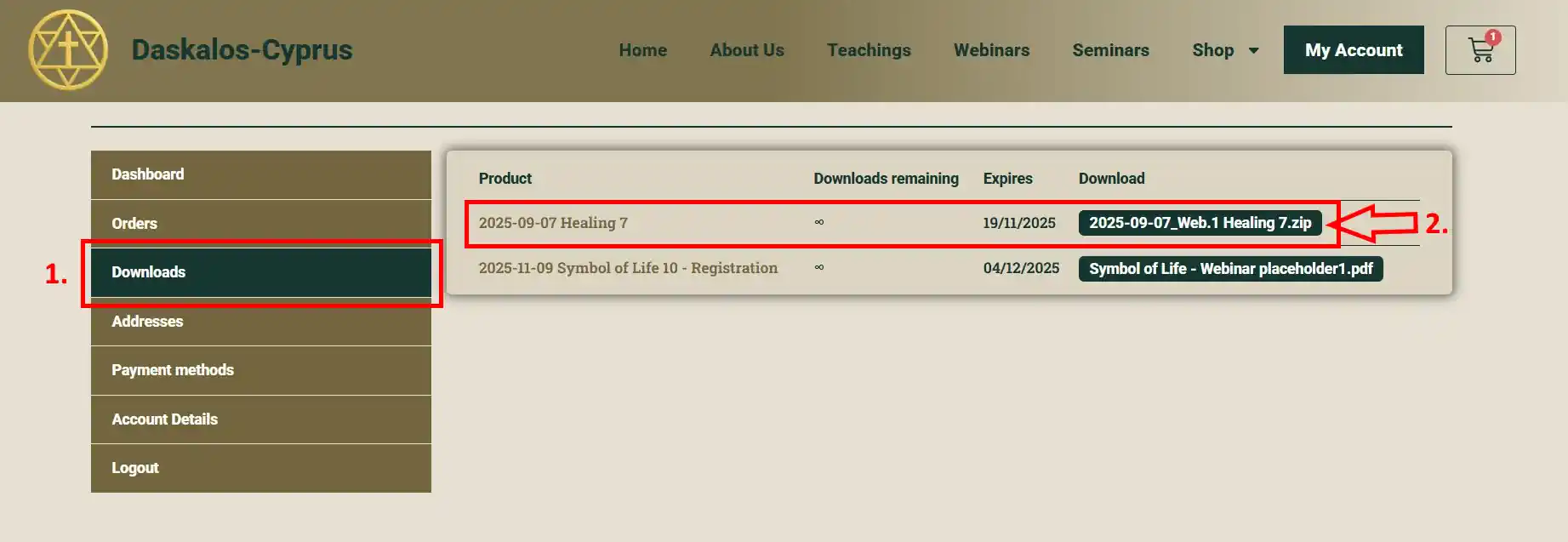
- After you logged into your account, go to your “Downloads” tab.
- Click on the link on the right side of your screen, for the webinar recordings you want to download.
Why is my Payment getting declined?
In almost all cases (vast majority), the issue is that the bank’s 3D verification process was not completed successfully.
After you click “Place Order” during checkout, your bank will prompt you to verify your identity through a 3D Secure (3DS) verification step.
If you do not complete this verification, your payment will automatically be declined.
What is 3D Verification:
3D Verification (also known as 3D Secure) is a security measure provided by your bank to protect you from unauthorized online transactions.
- Your bank requires this step to confirm your identity before approving the payment.
- It is comparable to the PIN code you use in your local Supermarket when you pay something with your card.
- The process is entirely managed by your bank — we have no control or access to it.
- If you experience any issues or your payment fails, please contact your bank directly for assistance.
If you are sure, that your payment did not get rejected because of a failed 3D Verification, here is a description of the default checkout process:
- Fill Out Your Billing Details
- Your billing information will be automatically filled in using the details saved in your account profile.
- Review this information and update it if necessary.
- Choose a Payment Method
- Select your preferred payment method.
- To view more options, click “Explore More Payment Methods.”
- Fill in any required fields for your chosen method.
- Agree to our Terms and Conditions
- Verify Your Phone Number
- Enter your phone number, chose the correct country code.
- Click “Request OTP.”
- You’ll receive an SMS with a 6-digit verification code.
- Enter the code in the new field that appears above the “Request OTP” button.
- Click “Submit OTP.”
- Place Your Order
- Review all your information carefully.
- Once everything is correct, click “Place Order.”
- Complete Bank Verification (3D Secure)
- Your bank may prompt you to complete a 3D Secure verification process.
- This step is managed entirely by your bank to confirm your identity.
- If you encounter any issues, please contact your bank directly for assistance. We can not help you with this step.
How do I register for a physical Seminar?
The physical in person Seminars are organised by Panayiota.
To receive information or register, please send an email directly to her.
Why should I Avoid placing an order or registering for a webinar using a Mobile Phone?
Our website is not a Mobile Application.
You are welcome to browse our website on a mobile phone. However, we kindly ask that all orders and webinar registrations be completed using a desktop or laptop computer.
To protect your personal data and to safeguard our organisation against fraudulent use, we have implemented specific security and verification measures. On mobile devices, certain required steps or confirmation pop-ups may not appear or may be unintentionally missed, which can result in incomplete or failed registrations or payments.
Using a computer helps ensure that every step is clearly presented and properly completed.
How can I read or transfer my purchased eBook on a Kindle device?
Download your purchased eBook from our website and use Amazon’s official Send to Kindle service to send it to your Kindle. Amazon will automatically convert the file to a Kindle-compatible format.
No additional software or converters are required.
All our eBooks contain individualised electronic watermarking, which remains intact after sending to Kindle.
✅ Send to Kindle (Easiest)
Amazon converts our eBooks → Kindle format automatically.
On Computer
- Go to Amazon’s Send to Kindle page
- Upload the file downloaded from our website after purchase.
- Sign in with your Amazon account
- Choose your Kindle device
- Send
The book will appear on their Kindle shortly.
Using the “Send to Kindle” App
Amazon provides Send-to-Kindle applications for both Windows and Mac.
- Find and install the app
- Drag the downloaded file into the app.
- Send to device